Challenge library
The challenge library is a curated set of reusable challenges you can import into your world. It is in the control panel under Build → Challenge library, so you can build out a world without starting every challenge from scratch.
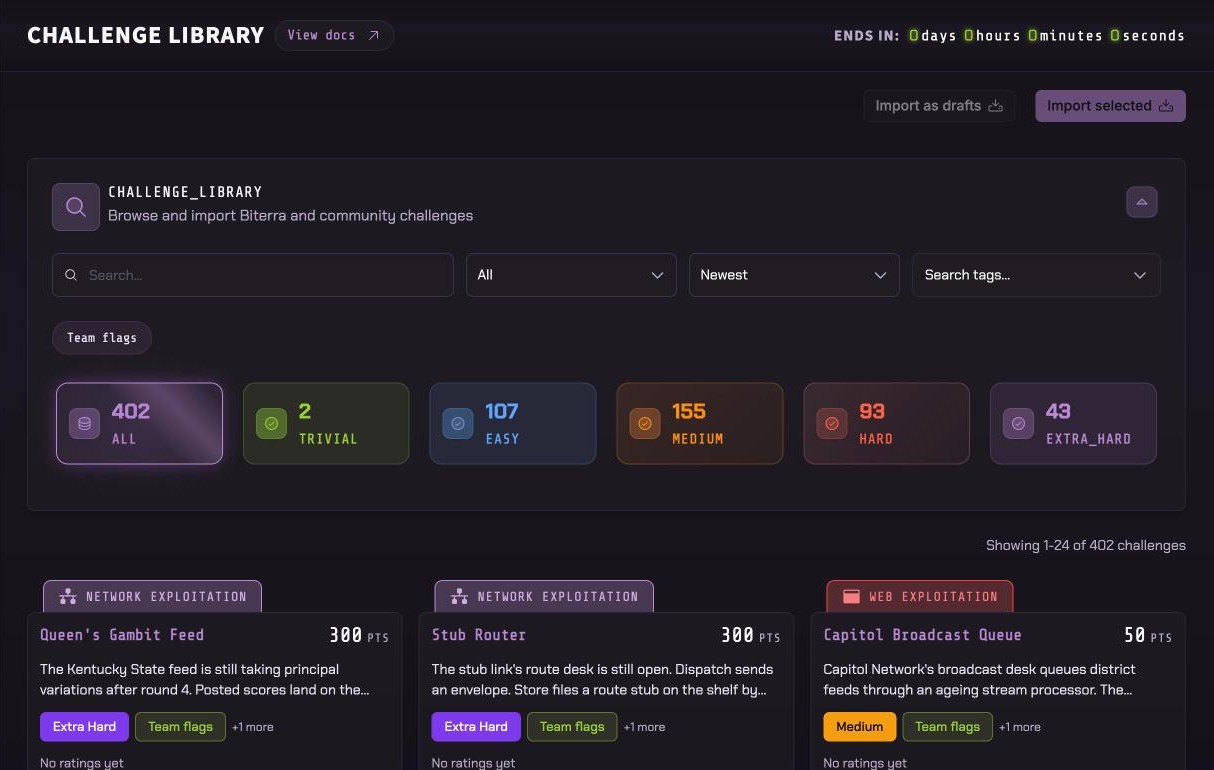
Use the challenge library to
- Browse reusable challenges from the control panel.
- Search and filter challenges by name, description, difficulty, form, and tags.
- Select one or more challenges when you find a good fit.
- Import selected challenges into the current world with Import selected in the page header, or Import as drafts to review them first.
- Open View more to see a challenge's details and ratings.
The Customer Portal challenge detail page is for inspection, readme/details, files, Docker information, and ratings. It is not where you import a challenge into a world.
To open the challenge library:
- In the Customer Portal, open Worlds.
- Select a world.
- Click Enter control panel to open the world control panel.
- Open Build → Challenge library.
Browsing
- Use the search field to find challenges by name or description.
- Filter by difficulty: All, Trivial, Easy, Medium, Hard, or Extra Hard.
- Filter by form: All, Flag, Multiple Choice, Text, Conquest, or Live.
- Filter by tags when tag options are available.
- Each challenge card shows the name, description, difficulty, category, points, form, rating, and tags.
- Challenge cards do not open details when you click the card body. Use Select to choose a challenge for import, or click View more to inspect readme/details, ratings, Docker information, and files in the Customer Portal detail page.
- Importing happens from Build → Challenge library in the control panel.
Import challenges
- Find the challenge or challenges you want.
- Use the Select checkbox on each challenge card.
- When at least one challenge is selected, click Import selected in the page header. Use Import as drafts if you want to review them before players can see them.
- Wait for the import result message.
- Open Build → Challenges to review the imported challenges.
There is not a separate per-row Import button in the current challenge library card list. Selection happens on the cards, and the import action appears in the header.
Selected challenges that have not already been imported are copied into your world. After a successful import, they appear under Challenges and can be edited like other world challenges.
What is copied
Name, description, category, form, points, penalty, hints, answer/options/conquest link, file, timebomb, difficulty, and sponsor fields can be copied into your world. For launchable (Docker/container) challenges, the image reference is copied, but launchable behaviour and instance scope should still be reviewed on the imported challenge.
After importing, set Progression and choice groups as needed.
After importing
- Confirm the imported category exists and uses the right color/icon.
- Check the map country or location for each challenge.
- Review point values against the rest of your event.
- Review prerequisites, choice groups, hidden state, and timebomb settings before players see the challenge.
- Test the intended solve path before the event opens.
- For imported launchable challenges, confirm the instance scope in world settings and ensure the organisation has enough launch runtime minutes.