Finding your way around the control panel
The control panel is organised around the life of an event. You build it, run it while players are in, then review it afterwards. The sidebar has one workspace for each of those, plus a few that apply at any time.
The workspaces
| Workspace | What it's for |
|---|---|
| Overview | Readiness checks, recent organiser activity, registration numbers and the schedule. |
| People | The users and teams registered for this event. |
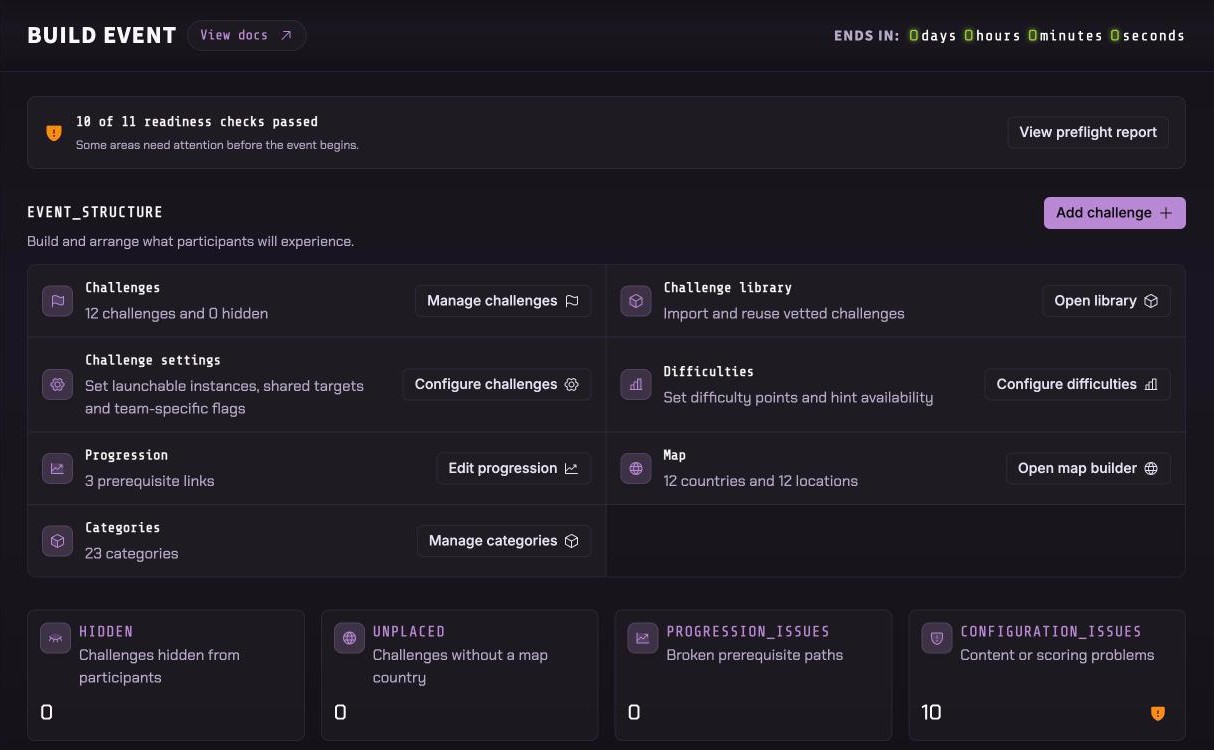
| Build | Everything players will experience: categories, challenges, difficulties, progression and the map. |
| AI | What the in-product assistant may help players with, and how automated AI access is treated. |
| Integrations | Discord, a music playlist, and credentials for private container registries. |
| Run | Live operations: event state, activity, problem reports and logs. |
| Review | Results, challenge performance and downloadable reports. |
Which workspace opens first
The control panel opens on the workspace that fits where the event is:
- Before the event starts, it opens on Build.
- While the event is live, it opens on Run.
- After the event ends, it opens on Review.
You can move between workspaces at any time from the sidebar.
Other event types
Some event types change the sidebar:
- Recruitment events add a Recruitment workspace and an Applicants tab under People.
- Attack & Defence events replace Build with an Attack & Defence workspace (game overview, services, instances, map, rounds and activity).
- Simulation events keep Overview, People, Build, Integrations and Review.
Readiness checks
The top of the Build overview shows how many readiness checks have passed. Select View preflight report to see what still needs attention before you launch. The four cards under the event structure count hidden challenges, challenges without a map country, broken prerequisite paths and configuration issues.
See Before you launch for the full checklist.
Leaving the control panel
- Back to portal returns to the world's page in the Customer Portal.
- Map opens the player map with your organiser access.