Control panel
The control panel is where you build and run one event. To open it, go to Worlds, select a world, then select Enter control panel.
Workspaces
The sidebar is split into workspaces. Each one matches a stage of the event.
| Workspace | What you do there |
|---|---|
| Overview | Check event readiness, registration numbers, the schedule and recent organiser activity. |
| People | See registered users and teams. |
| Build | Set up categories, challenges, challenge settings, difficulties, the challenge library, progression and the map. |
| AI | Choose what the AI features do in this event. |
| Integrations | Connect Discord, music and registry credentials. |
| Run | Operate the live event: announcements, problem reports, score submissions and logs. |
| Review | Look back at the event: standings, challenge performance and reports. |
Finding your way covers the layout in more detail.
Event dates, registration, access type and homepage content are set on the world's page in the Customer Portal. See World settings.
Recommended build order
- Create categories so challenges have a group and a map colour.
- Add challenges, or import them from the challenge library.
- Check each challenge's points, answer, hint, files and links.
- Place challenges on the map.
- Set prerequisites and choice groups in Progression.
- Schedule announcements for known milestones.
- Open Build overview and select View preflight report to see anything that still needs attention.
Before you launch
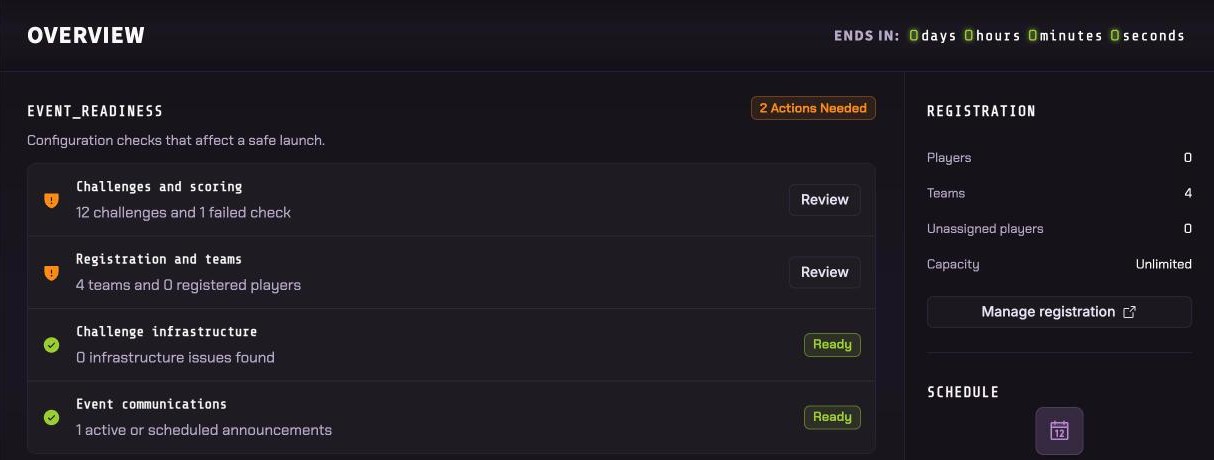
The Overview workspace lists readiness checks under Event readiness. Select Review on any check that needs action.
It is also worth checking by hand that:
- At least one challenge is visible when the event starts.
- Files and external links open.
- Launchable challenges have the right instance mode and enough runtime minutes.
- Timebomb windows fall inside the event period.
- Progression has no accidental dead ends.
- A test team can register, open the map, open a challenge, submit an answer and see the score change.
During and after the event
- Use Run to watch activity, send announcements and handle problem reports.
- Use the Run logs to review score submissions, penalties, hints and launches.
- Be careful changing challenges or progression during live play. Changes affect what teams can see and solve straight away.
- After the event, use Review for final standings and downloadable reports.