Developer and API keys
Settings → Developer in the Customer Portal is where you create API keys, connect an MCP client and open the API reference.
API keys
There are two kinds of key.
| Kind | Acts as | Use it for |
|---|---|---|
| Personal keys | You | Organiser tools, your own scripts, and anything that plays or sets up an event on your behalf. |
| Organisation keys | The organisation | Shared tools and dashboards that should keep working when people change. |
Create a key
- Open the Personal keys or Organisation keys tab.
- Select Create API key.
- Give the key a Name that says what uses it, such as "Event results dashboard".
- Choose an Expiration. The default is 1 year.
- Tick Read or Write for each resource the key needs.
- Select Create key.
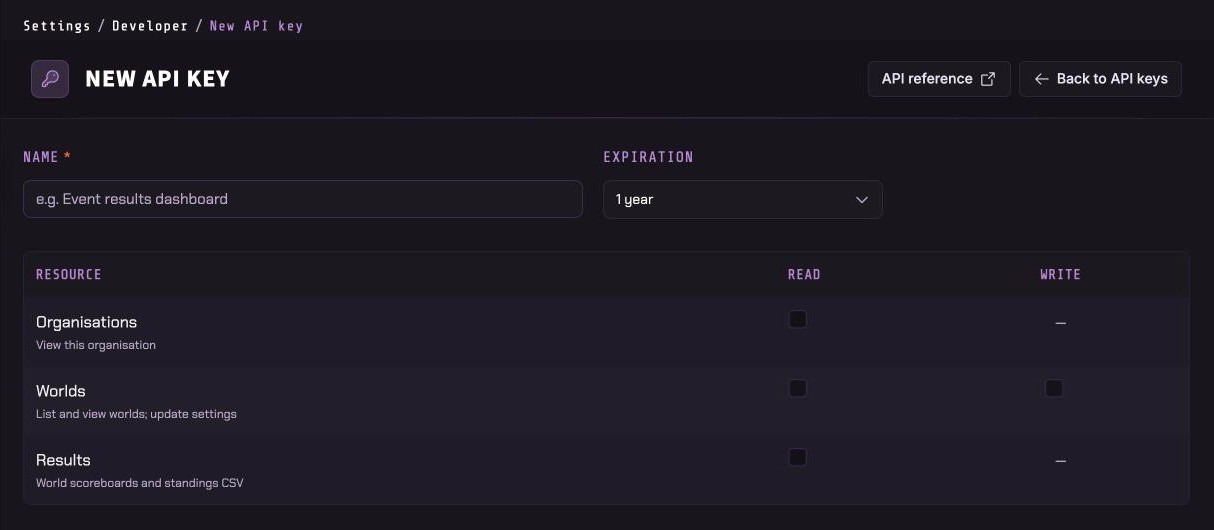
Give a key only the access its tool needs.
The list shows each key's name, access, when it was created and last used, and when it expires.
Organisation key access
| Resource | Read | Write |
|---|---|---|
| Organisations | View this organisation | |
| Worlds | List and view worlds | Update settings |
| Results | World scoreboards and standings CSV |
Personal key access
| Resource | Read | Write |
|---|---|---|
| Organisations | List and view your organisations | |
| Worlds | List and view worlds | Create worlds and update settings |
| Teams | List teams | Create, update and delete teams |
| Results | World scoreboards and standings CSV | |
| Recruitment jobs | Job listings, details and specifications | Manage jobs |
| Applications | List and view recruitment applications | |
| Player access | View world details, categories, challenges, teams, announcements and messages | |
| My team | View your participant team | Update it |
| Challenge participation | Read unlocked hints | Purchase hints and submit answers |
| Player instances | Check instance status | Launch and stop challenge instances and world targets |
| Problem reports | View your reports | Report challenge problems |
| World setup | View organiser content, assessments and simulation scenarios | Configure them |
API reference
Select API reference to open the interactive reference for the Customer Portal Public API. It lists every operation, and you can download the OpenAPI document from it.
Connect an MCP client
The MCP tab sets up an assistant, such as Codex, to work with Biterra through a local MCP server.
-
Choose an API key. Use an existing key or create one with the access your assistant needs. For organiser tools, use a personal key with World setup access.
-
Install the server. Select Download server kit (.zip) and extract it. You need Node.js 22 or later. From the extracted folder, run:
npm ci --prefix packages/public-api-mcp -
Configure your client. Choose your client, enter the full path to
server.mjs, and select Copy configuration. Start the client withBITERRA_API_KEYset in its environment. -
Check the connection. Restart your client and ask it to use Biterra's find tool to search for "category". It should return matching operations.